# Managing Tags
Creating Tags
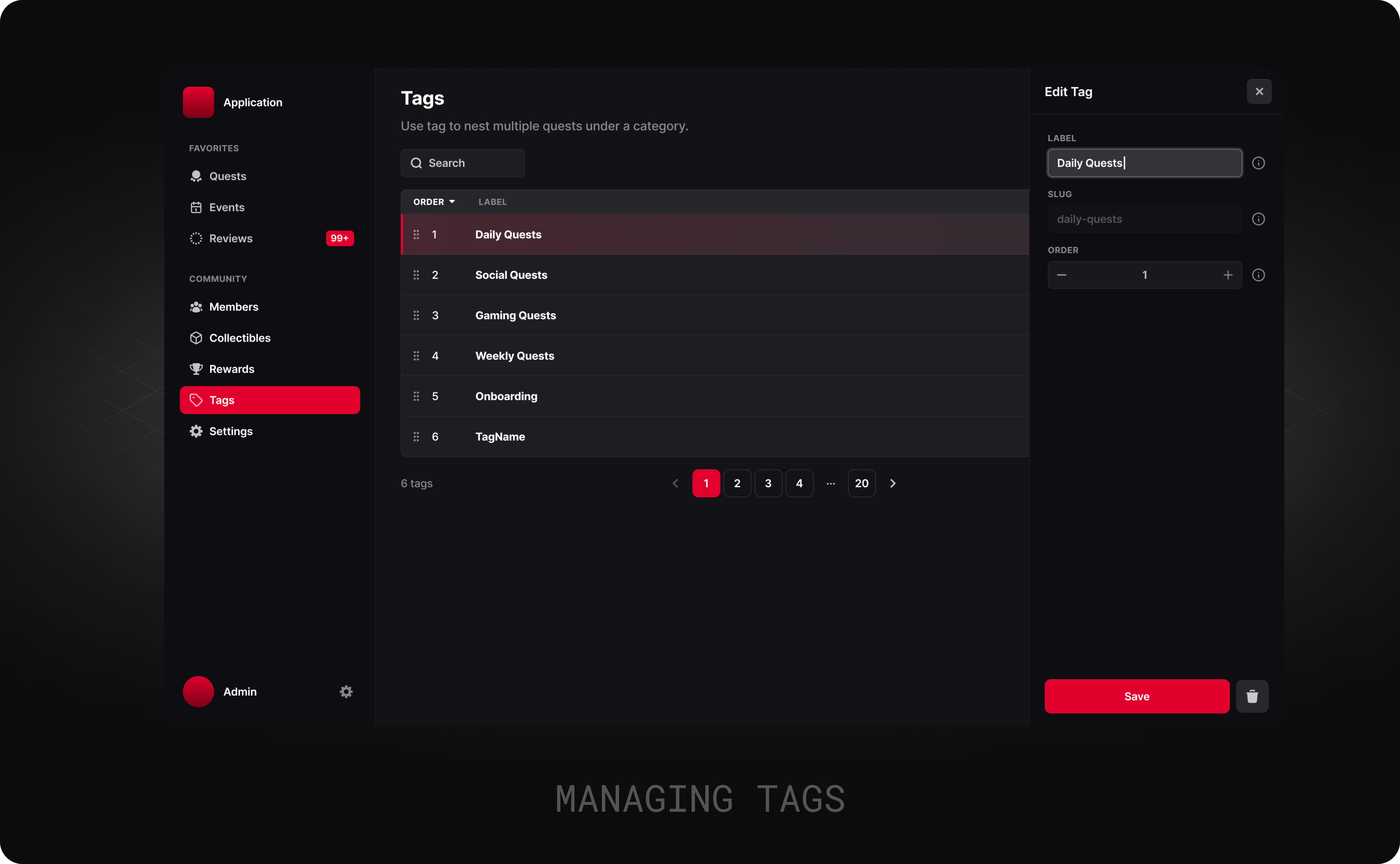
Begin by selecting **`Create Tag`** and filling out the following properties:
* **Label:** The name of the tag users will see.
* **Slug:** Displayed in the browser URL once a tag is selected. The slug is the same as the tag name by default, but Admins can customise it. The slug cannot be changed.
* **Order:** Set the display order for the tag. Lower numbers appear first. If two tags have the same order number, the oldest tag will be displayed first.
Managing Tags
After creating tags, Admins can:
* **Edit:** Admins can edit a Tag's name and order. The slug cannot be changed.
* **Merge:** This option consolidates all quests under one tag into another, eliminating the original tag but housing its quests under the new tag.
* *For instance,* *merging "Social Quests" into "Gaming Quests" will result in all quests being categorised under "Gaming Quests".*
* **Delete:** Deleting a tag permanently removes it from the Admin's database, and all its quests are housed under the default **`Other`** tag.